Quick start
Your first ten minutes
This page assumes you have never used Mālama and nobody has shown you anything. Work through it once and you will know where everything lives.
What Mālama is for. It holds two kinds of record: who works here, and what has happened that needed writing down — workplace incidents, and performance reviews. It is deliberately strict about who can see what, so some screens described here may not appear for you. That is not a fault.
Step 1 — Sign in
Open the address your administrator gave you. You will be asked for a username and
password. Your username is usually your surname with a first initial — for example
kmakoa — and is not your email address.
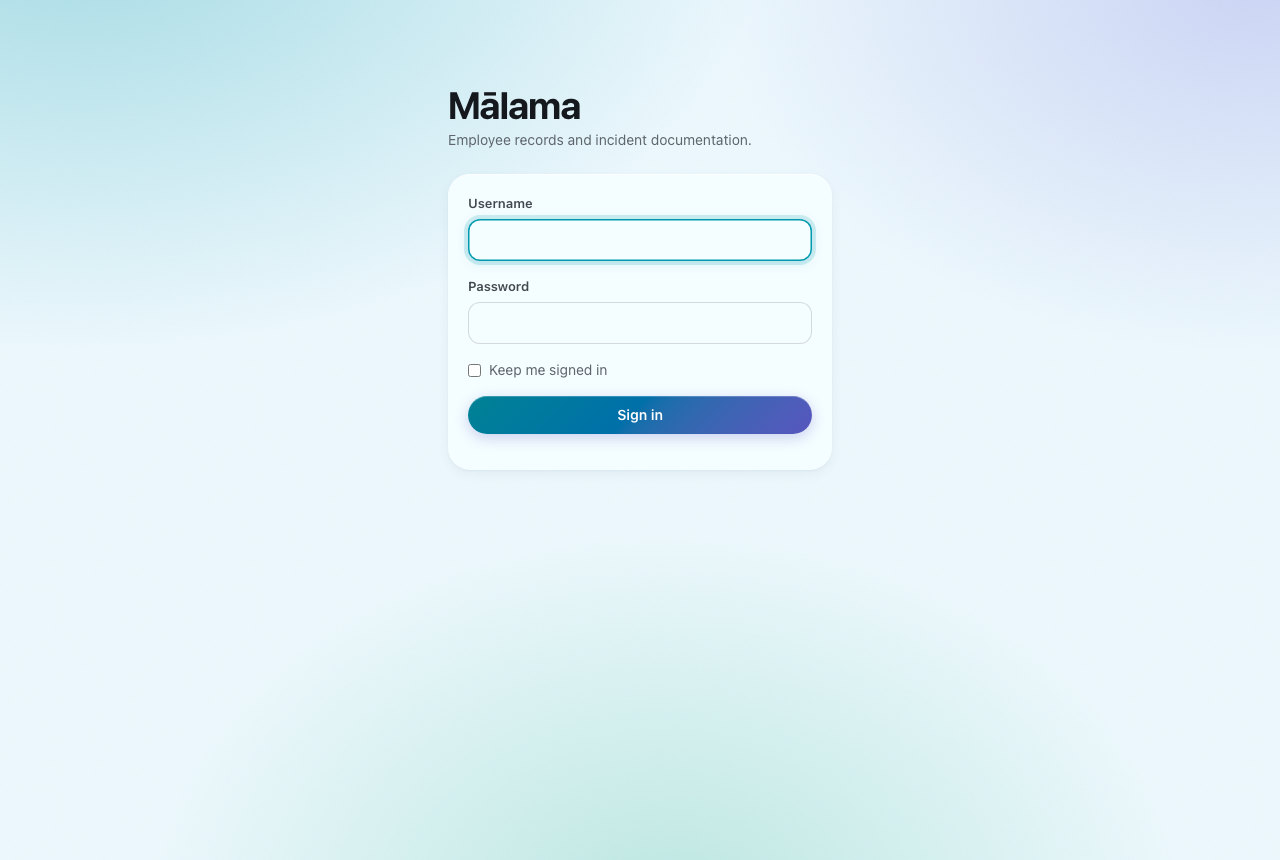
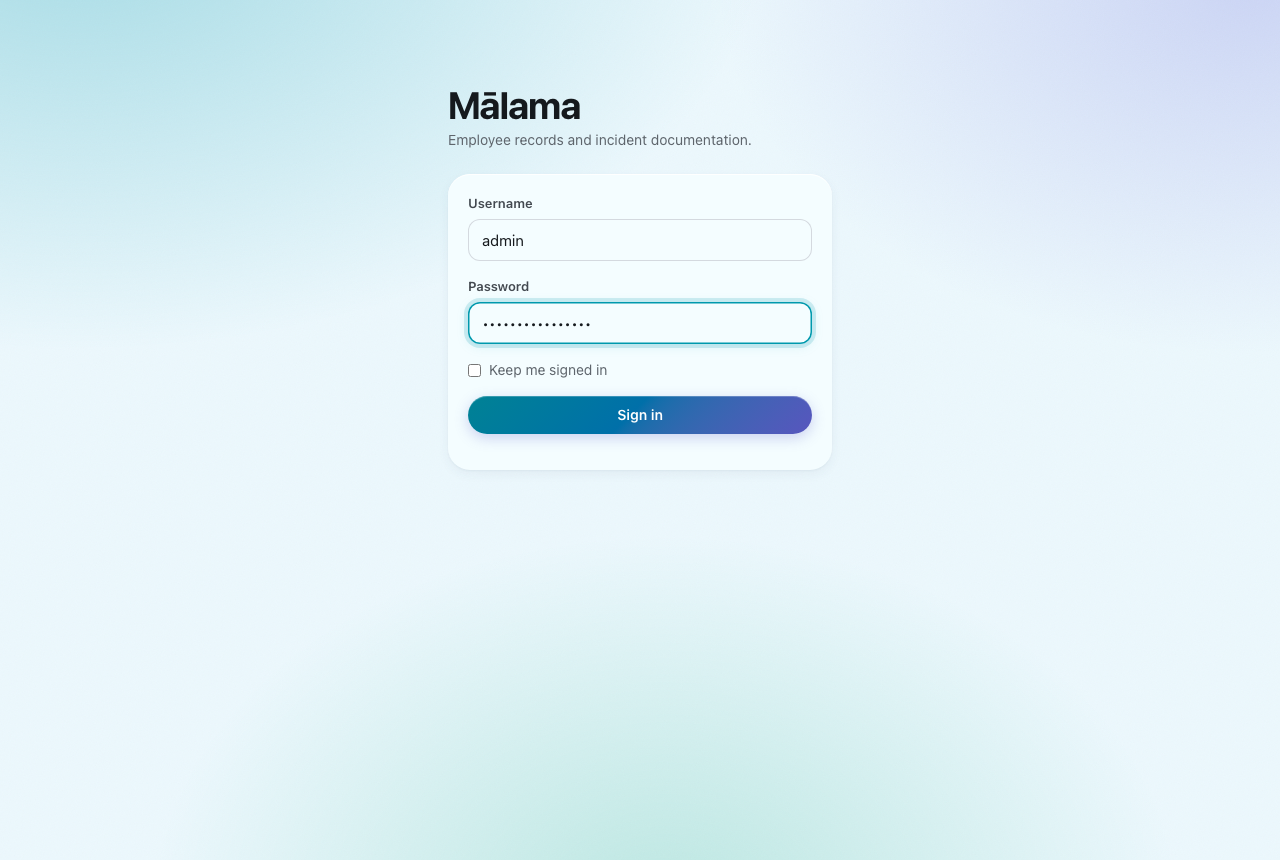
Type your username and password and press Sign in. Tick Keep me signed in only on a computer nobody else uses — this app holds confidential records about colleagues.
If you were sent an invitation link
Follow the link instead and choose your own password. The link works once and then expires. Nobody — including your administrator — ever knows the password you pick.
If you are asked to change your password immediately, that is expected: accounts created with a temporary password cannot go anywhere else until a new one is set. Choose something at least 12 characters long with an uppercase letter, a number and a symbol.
Step 2 — Get your bearings
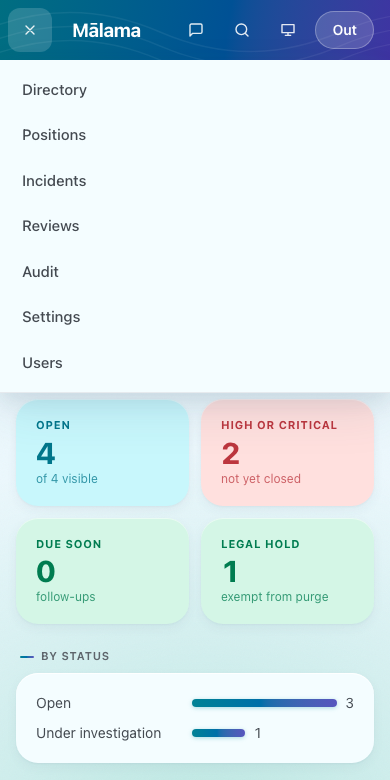
Everything is reached from the coloured bar across the top. Which entries you see depends on your role, so your bar may be shorter than the one below.

- Directory — everyone who works here, and how to contact them.
- Positions — the seats in the organisation and which are vacant.
- Incidents — things that happened and were written down.
- Reviews — performance reviews, including your own.
- Audit, Settings, Users — administration, for HR administrators only.
On a phone these move into a menu behind the ☰ button in the top-left corner.
Step 3 — Read the dashboard
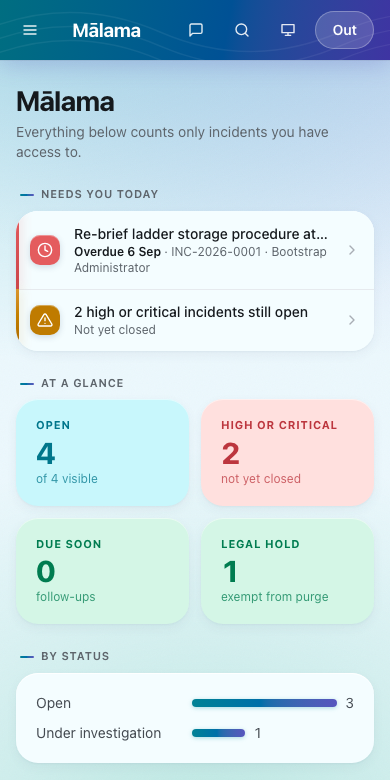
Signing in lands you here. It is arranged so the most important thing is at the top: the Needs you today list, which shows overdue follow-up actions and any incident marked high or critical that is still open. If that section is missing, nothing is waiting for you.
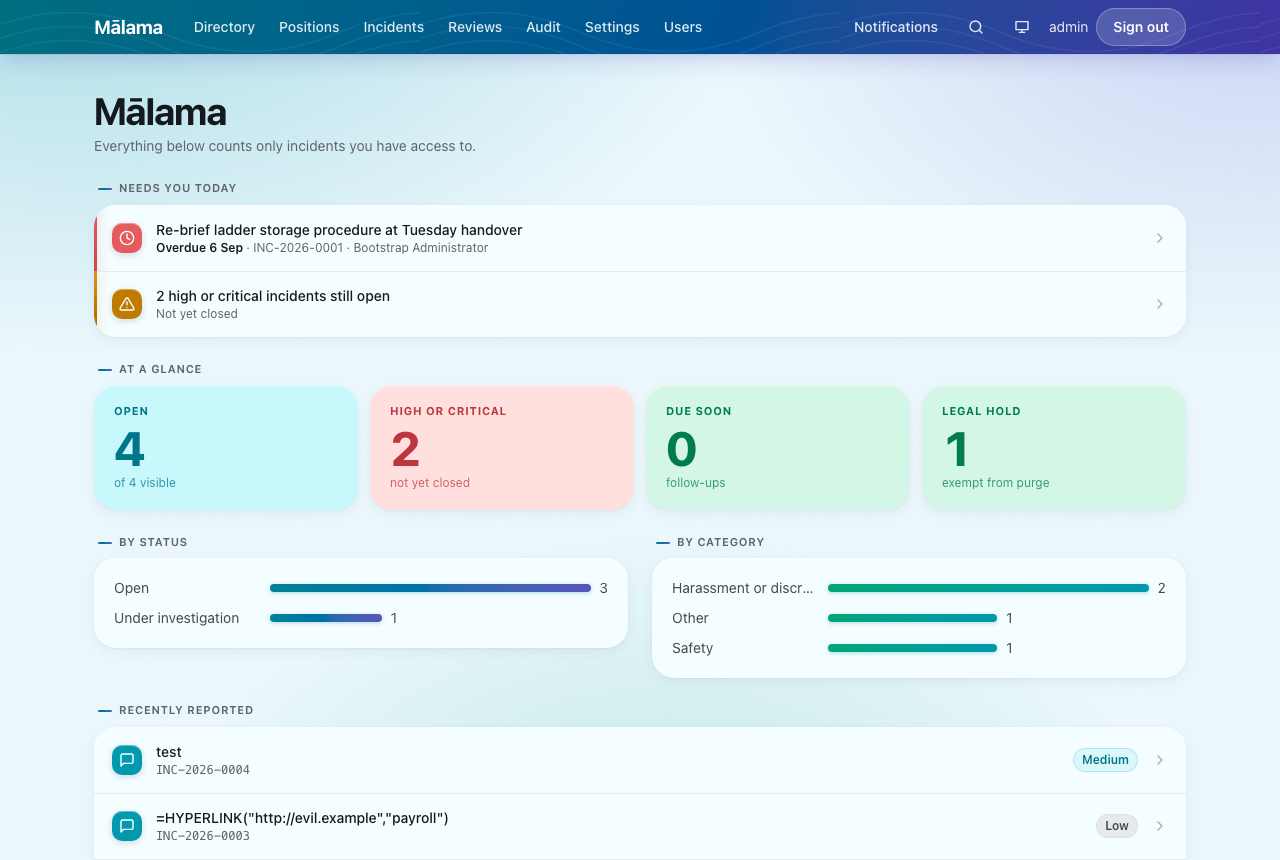
The coloured tiles below it are counts, not actions. They change colour with meaning — the High or critical tile turns coral only when the number is above zero. Everything on this page counts only the incidents you are allowed to see, so your totals may legitimately differ from a colleague's.
Step 4 — Find anything in two seconds
Press / anywhere in the app — or
⌘K on a Mac,
CtrlK on Windows. Start typing a person's
name, an incident title, or a reference number like
INC-2026-0001.
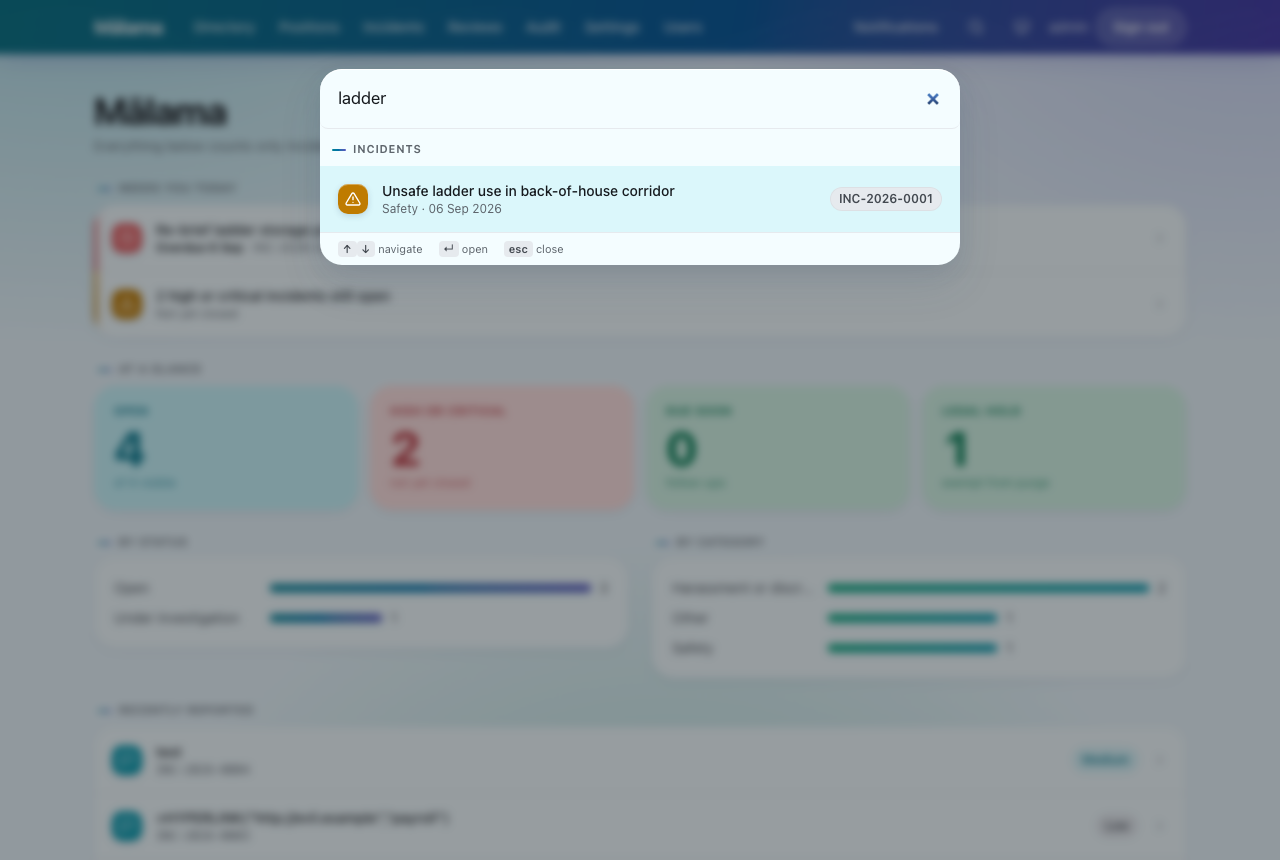
Search only ever returns records you are allowed to open. If you cannot find something you were told about, the likely reason is that it is restricted rather than missing.
Step 5 — Make it comfortable
The small screen icon in the top bar switches between following your system setting, light and dark. Your choice is remembered on that device.
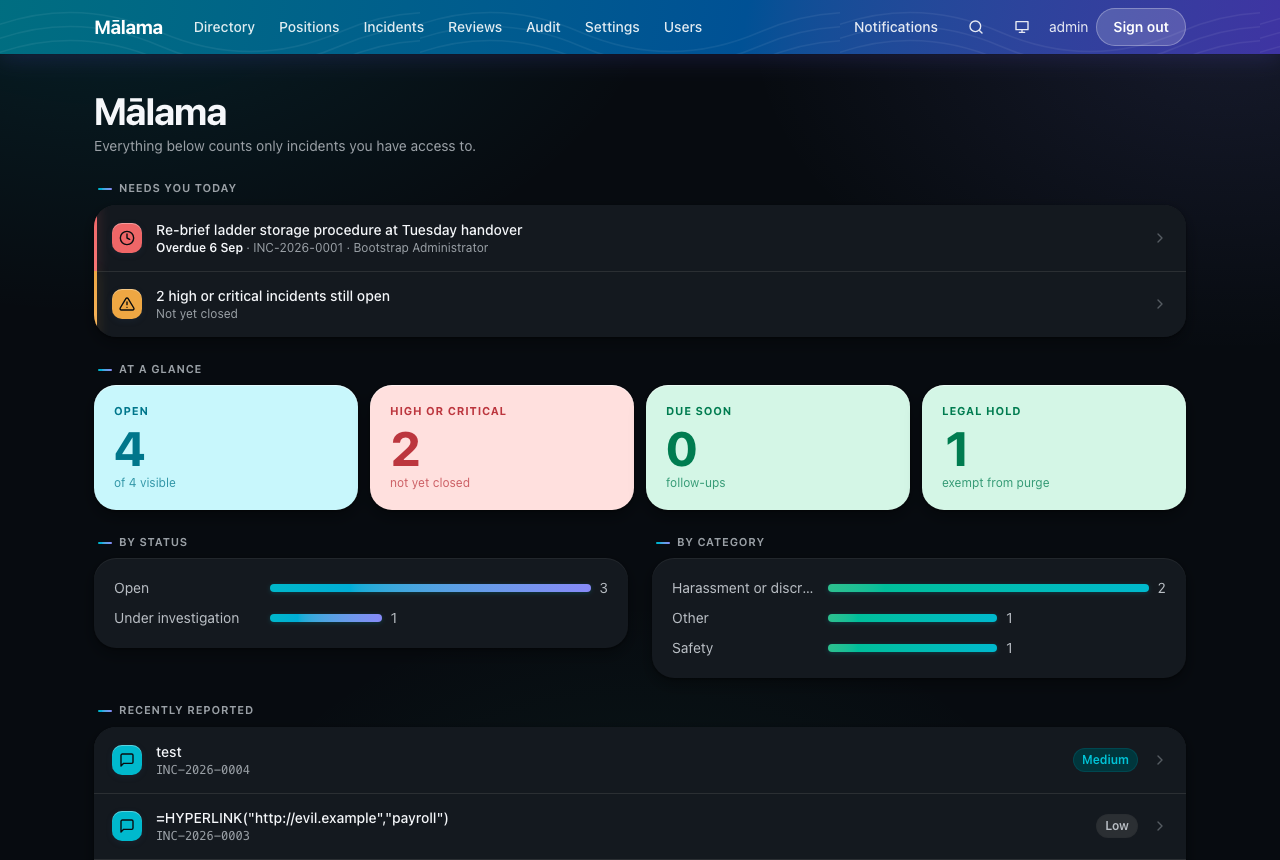
Mālama works on a phone as well. The layout stacks, and the menu moves behind the ☰ button.